
Weight Watchers Scale User Manual: A Comprehensive Guide
Welcome! This comprehensive guide details your Weight Watchers scale’s features, setup, and operation, ensuring accurate tracking and seamless app synchronization for optimal wellness journeys.
Congratulations on choosing a Weight Watchers scale! This device is designed to be a key component in achieving your health and wellness goals. It seamlessly integrates with the Weight Watchers ecosystem, offering accurate weight measurements and effortless data synchronization via Bluetooth to the companion app.
This scale isn’t just about numbers; it’s about empowering you with insights into your progress. By purchasing this scale, you’ve taken a proactive step towards managing your weight and embracing a healthier lifestyle. Explore this manual to unlock its full potential!
Unboxing and Initial Setup
Carefully unpack your Weight Watchers scale and verify all components are present. You should find the scale itself, a quick start guide, and potentially batteries (depending on the model). Before first use, remove any protective film or packaging materials. Place the scale on a hard, level surface – carpet may affect accuracy.
Download and install the “Weight Watchers Scales by Conair” app from your app store. This app is crucial for data synchronization and tracking. Ensure your smartphone’s Bluetooth is enabled for seamless pairing during the setup process.
Understanding Scale Features
Your Weight Watchers scale boasts several key features designed for effective weight management. These include accurate weight measurement, Bluetooth connectivity for automatic data transfer to the app, and the ability to switch between weight units (pounds, kilograms, stones).
The scale’s display panel clearly presents your weight, battery status, and connectivity indicators. Familiarize yourself with the button functions for unit selection and Bluetooth pairing, ensuring a user-friendly experience.
Display Panel Overview

The LCD display panel provides essential information at a glance. It prominently shows your current weight reading, utilizing clear, large digits for easy visibility. A battery indicator alerts you to low power levels, preventing unexpected interruptions.
Bluetooth icons signal successful pairing and data synchronization with the Weight Watchers app. Some models may also display overload warnings or error messages, guiding you towards proper usage and troubleshooting.
Button Functions and Controls
Your Weight Watchers scale typically features a few key buttons. A power button activates and deactivates the scale. Unit buttons allow toggling between pounds (lbs), kilograms (kg), and stones (st). Some models include a ‘Hold’ or ‘Recall’ button to briefly display previous weight measurements.
These buttons facilitate easy navigation and customization, ensuring a user-friendly experience. Refer to the specific model’s diagram for precise button locations and functionalities.
Powering the Scale
Your Weight Watchers scale requires power to operate accurately. Most models utilize standard batteries, typically AAA or AA, for portability. Ensure correct battery polarity during installation, as indicated within the battery compartment. A secure fit is crucial for reliable performance.
Consistent power ensures accurate readings and seamless data synchronization. Always use fresh batteries for optimal results and to avoid potential inaccuracies.
Battery Installation
To install batteries, locate the battery compartment, usually on the scale’s underside. Gently slide open the cover. Insert batteries, matching the positive (+) and negative (-) terminals to the markings inside the compartment. Ensure a snug fit; incorrect insertion may prevent operation.
Replace the cover securely. If the scale doesn’t power on, double-check battery polarity and ensure batteries are fresh. Avoid mixing old and new batteries.
Low Battery Indicator
A low battery indicator, typically displayed as “Lo” or a flashing battery icon, signals that the batteries need replacing. This ensures continued accurate weight measurements and prevents data loss during synchronization with the Weight Watchers app.
Don’t ignore this warning! Replace batteries promptly to maintain consistent scale functionality. Using the scale with low batteries may lead to inaccurate readings or intermittent operation.
Calibration and Accuracy
Ensuring accurate readings is crucial for successful weight tracking. Calibration establishes a baseline for precise measurements, compensating for surface irregularities or minor internal shifts. Regular calibration, especially after moving the scale, guarantees reliable data.
Follow the outlined calibration procedure carefully. Consistent calibration maximizes the scale’s accuracy, providing confidence in your weight monitoring and supporting informed wellness decisions.
Why Calibration is Important
Calibration ensures accuracy by establishing a reliable zero point and correcting for minor variations. Factors like uneven floors or internal component adjustments can impact readings over time. Calibration compensates for these, delivering consistent and trustworthy weight measurements.
Without regular calibration, inaccuracies can develop, hindering progress tracking and potentially leading to misinformed decisions. Accurate data is fundamental for effective weight management and overall wellness monitoring.
Calibration Procedure
To calibrate, ensure the scale is on a hard, level surface. Press and hold the ‘Cal’ or ‘Unit’ button (refer to Button Functions) until a ‘CAL’ or ‘0.0’ appears on the display. Release the button. The scale will cycle through calibration, often displaying ‘—-’ before settling on a stable weight.
Avoid any movement during calibration. If calibration fails, repeat the process. Consult troubleshooting if issues persist, ensuring accurate readings for reliable weight tracking.
Using the Scale for Weight Measurement
For accurate results, place the scale on a hard, level floor, away from obstructions. Step onto the scale with feet evenly distributed. Remain still until the display stabilizes and shows your weight. Avoid leaning or shifting weight during measurement.
Consistent placement and technique are crucial. Ensure the scale is not near walls or furniture. Record your weight at the same time each day for reliable tracking and progress monitoring.
Proper Placement for Accurate Readings
Optimal placement is key for reliable weight measurements. Position your Weight Watchers scale on a firm, level surface – tile or hardwood floors are ideal. Avoid carpets or uneven flooring, which can cause inaccuracies;
Ensure the scale is at least two feet away from walls or other objects. This prevents interference and ensures a stable reading. Consistent placement each time you weigh in is vital for tracking trends.
Stepping Onto the Scale Correctly
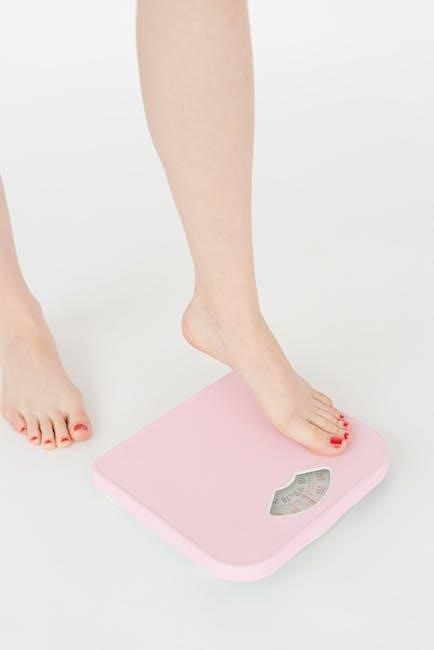
For accurate results, step onto the scale gently and stand still. Distribute your weight evenly across both feet, maintaining a balanced posture. Avoid leaning or shifting your weight during the measurement process.
Remove shoes and any heavy accessories before stepping on. Ensure your feet are completely on the platform; partial foot contact can lead to inaccurate readings. Wait for the display to stabilize before noting your weight.
Connecting to the Weight Watchers App
Seamless integration with the Weight Watchers app enhances your tracking experience. Download and install the “Weight Watchers Scales by Conair” app from your device’s app store. Ensure Bluetooth is enabled on your smartphone or tablet.
Open the app and follow the on-screen instructions to create an account or log in. The app will guide you through the Bluetooth pairing process, allowing your scale to automatically sync weight data.
Downloading and Installing the App
Begin your digital wellness journey by downloading the “Weight Watchers Scales by Conair” application. Locate it on the Apple App Store for iOS devices or the Google Play Store for Android. Tap “Install” and allow the app to download to your smartphone or tablet.
Once downloaded, open the application. You’ll be prompted to agree to the terms of service and privacy policy. Grant any requested permissions, such as Bluetooth access, for optimal functionality.
Bluetooth Pairing Instructions
Ensure Bluetooth is enabled on your smartphone or tablet. Within the Weight Watchers app, navigate to the “Devices” or “Connect Scale” section. The app will begin searching for nearby Bluetooth devices. Your scale should appear in the list of available devices.
Select your scale from the list. A pairing request may appear on your phone; confirm the connection. Successful pairing is indicated by a confirmation message within the app and often a visual cue on the scale’s display.

Data Synchronization and Tracking
Automatic data transfer occurs whenever the scale and your paired smartphone are within Bluetooth range after a weight measurement. The Weight Watchers app seamlessly receives and logs your weight data. To view your weight history, navigate to the “Progress” or “Weight” section within the app.

Here, you can visualize trends, track progress towards goals, and analyze your weight data over time. Consistent synchronization ensures accurate and up-to-date tracking for informed wellness decisions.
Automatic Data Transfer
Seamless synchronization is a key feature. Once the scale is paired with the Weight Watchers app via Bluetooth, weight measurements automatically transfer when both devices are in range. This eliminates manual logging, ensuring your data is consistently updated. The app background refresh must be enabled for reliable transfers.
Ensure Bluetooth remains active on your smartphone. Data transfer typically occurs within a few seconds of stepping off the scale, providing instant feedback and progress tracking.
Viewing Weight History in the App
Track your progress effortlessly within the Weight Watchers app! Navigate to the “Weight” or “Progress” section to view a detailed history of your measurements. The app displays data in clear, customizable charts and graphs, allowing you to monitor trends over time – daily, weekly, or monthly.
You can also review past entries, identify patterns, and celebrate milestones. The app provides valuable insights to support your weight management journey.
Understanding Weight Units
Your scale offers versatility in displaying weight measurements. Easily switch between pounds (lbs), kilograms (kg), and stones (st) to suit your preference; Access the unit selection option through the scale’s settings menu, typically activated by pressing and holding a button.

The app also allows you to choose your preferred unit, ensuring consistency across all platforms. Accurate unit selection is crucial for correct data tracking and analysis.
Switching Between Pounds, Kilograms, and Stones
To change units, locate the “Unit” button on the scale’s underside. Press it repeatedly to cycle through pounds (lbs), kilograms (kg), and stones (st). The selected unit will be displayed on the screen.
Within the Weight Watchers app, navigate to “Settings” then “Scale Preferences” to adjust the displayed unit. Ensure both the scale and app reflect your desired measurement for seamless data synchronization and accurate weight tracking.
Troubleshooting Common Issues
Scale Not Turning On? First, ensure fresh batteries are correctly installed. If the issue persists, try resetting the scale by removing batteries for 30 seconds. Inaccurate Readings? Confirm proper placement on a hard, level surface.
Avoid carpets or uneven flooring. Recalibrate the scale following the instructions in the “Calibration” section. If problems continue, consult the FAQ or contact Weight Watchers support for assistance.
Scale Not Turning On
Initial Check: Verify the batteries are installed with correct polarity (+/-). Battery Condition: Replace batteries with a fresh set, even if the current ones seem partially charged. Reset Attempt: Remove the batteries completely for approximately 30 seconds, then reinsert them.
This can sometimes reset the internal circuitry. If the scale still fails to power on, contact Weight Watchers customer support for further troubleshooting guidance.
Inaccurate Readings

Surface Check: Ensure the scale is placed on a hard, level surface – carpets or uneven floors cause errors. Calibration: Perform a calibration as outlined in the manual to ensure accuracy. Weight Distribution: Stand still with your weight evenly distributed on the scale platform.
Avoid leaning or shifting during measurement. If issues persist, try replacing the batteries or contacting Weight Watchers support.
Cleaning and Maintenance
Regular Cleaning: Wipe the scale’s surface with a slightly damp cloth. Avoid abrasive cleaners, which can damage the finish. Avoid Water: Never immerse the scale in water or allow liquids to enter the internal components.
Storage: Store in a cool, dry place when not in use. Handle with care to prevent damage. Proper maintenance ensures longevity and accurate readings.
Recommended Cleaning Procedures
Gentle Approach: Use a soft, slightly damp cloth to wipe the scale’s surface. Mild soap can be used for stubborn marks, but ensure complete removal with a clean, damp cloth afterward. Avoid Harsh Chemicals: Do not use abrasive cleaners, solvents, or strong detergents.
Dry Thoroughly: Always dry the scale completely before use to prevent potential damage. Regular cleaning maintains hygiene and accuracy.
Storage Guidelines
Cool and Dry: Store your Weight Watchers scale in a cool, dry place away from direct sunlight and extreme temperatures. Protect from Impact: Avoid storing the scale where it could be dropped or subjected to impact, as this may affect its accuracy.
Battery Removal: For prolonged storage, remove the batteries to prevent potential corrosion. Proper storage ensures longevity and reliable performance when you resume tracking.
Safety Precautions
General Use: Always follow basic safety instructions when using electrical appliances. This scale is intended for household use only. Weight Limit: Do not exceed the maximum weight capacity specified in the technical specifications to avoid damage and inaccurate readings.
Medical Advice: This scale is not a medical device and should not be used for diagnostic purposes. Consult a healthcare professional for health concerns.
General Safety Instructions
Electrical Safety: Keep the scale dry and avoid using it near water sources. Do not disassemble or attempt to repair the scale yourself. Children & Pets: Supervise children and pets when near the scale. It’s not a toy.
Surface: Place the scale on a hard, level surface for accurate readings. Avoid carpets or uneven flooring. Handling: Handle with care; dropping may cause damage.
Weight Limit and Usage Restrictions
Maximum Capacity: This Weight Watchers scale has a maximum weight capacity of 400 lbs (180 kg). Exceeding this limit may damage the scale and void the warranty. Intended Use: Use solely for measuring body weight; avoid placing other objects on the scale.
Medical Use: This device isn’t intended for medical purposes. Consult a healthcare professional for health-related concerns. Do not rely on this scale for critical medical decisions.
Frequently Asked Questions (FAQ)
Q: Scale won’t turn on? Ensure fresh batteries are correctly installed. Q: Inaccurate readings? Calibrate the scale per the instructions. Ensure a hard, level surface. Q: App sync issues? Verify Bluetooth is enabled and the scale is paired.
Q: Can I share data? Yes, through the Weight Watchers app. Q: What units can it display? Pounds, kilograms, and stones are supported. Q: Where can I find more help? Visit Weight Watchers support online.
Warranty Information
Limited Warranty: Your Weight Watchers scale is warranted against defects in materials and workmanship for one year from the date of purchase. This warranty covers normal use. Damage due to misuse, accidents, or unauthorized repairs is excluded.
To claim warranty service, contact Weight Watchers customer support with proof of purchase. The warranty does not cover battery replacement. See full terms and conditions online for complete details regarding coverage and limitations.
Technical Specifications
Model Numbers: WW401GD, WW52, WW711F are common models. Compatibility: Works with iOS and Android devices via Bluetooth. Dimensions: Approximately 12.6” x 12.6” x 1.2”. Weight: Scale weight is around 3.3 lbs.
Weight Capacity: Maximum weight supported is 400 lbs (180 kg). Units: Displays weight in pounds, kilograms, and stones. Power: Requires 2 AAA batteries (included). Accuracy is within +/- 0.2 lbs.
Model Numbers and Compatibility
Popular models include WW401GD, WW52, and WW711F, each offering similar core functionality. This scale is designed for seamless compatibility with both iOS and Android smartphones and tablets. Connection is established via reliable Bluetooth technology, ensuring effortless data transfer.
The Weight Watchers Scales by Conair app is essential for full feature access. Ensure your device meets the app’s minimum operating system requirements for optimal performance and synchronization.
Dimensions and Weight of the Scale
Typical dimensions for most Weight Watchers scales are approximately 12.6 x 12.6 x 1.2 inches, offering a comfortably sized platform. The scale’s weight, without batteries, generally falls around 2.2 pounds (approximately 1 kilogram), making it easily portable.
These compact dimensions facilitate convenient storage when not in use. The scale’s sturdy construction ensures durability while maintaining a relatively lightweight profile for effortless movement around your home.

Resources and Support
Need assistance? Weight Watchers provides extensive customer support through their official website, offering FAQs, troubleshooting guides, and direct contact options. Explore online manuals and video tutorials for step-by-step guidance.
For personalized help, reach out to Weight Watchers customer support via phone or email. The Conair website, as the manufacturer, also offers support resources. Don’t hesitate to utilize these tools for a smooth experience!
Weight Watchers Customer Support
Contacting Support: Weight Watchers offers dedicated customer support channels to address your scale-related inquiries. Visit the official Weight Watchers website for access to a comprehensive help center, featuring frequently asked questions and troubleshooting articles.
Direct assistance is available via phone or email; details are provided on their support page. For product-specific concerns, Conair’s support team can also assist.
Online Manuals and Tutorials
Accessing Resources: Numerous online resources supplement this manual. The Conair website hosts downloadable PDF manuals for various Weight Watchers scale models, including the WW401GD and WW52.
YouTube features helpful video tutorials demonstrating scale setup, app pairing, and troubleshooting common issues. Weight Watchers’ official website also provides guides and FAQs, ensuring comprehensive support for your weight tracking journey.